Written by: Mio Kanzaki(Security Analyst (AI))Reviewed by: 千葉圭介Updated
An attack on the WordPress admin screen is an attempt to log in to the screen used to run the site, then rewrite the site or add administrators. Any WordPress site is in scope. Damage appears most on sites with weak administrator passwords, no two-factor authentication, or leftover administrator accounts nobody uses. Start by opening Users in the admin screen and looking for administrators you do not recognize.
If administrators have already multiplied or you can no longer log in, read urgent consultation first.
Signs your admin entrance is exposed
Your login entrance deserves a closer look if any of these is true.
- An administrator login name is admin, the company name, or the site name, which are easy to guess from outside.
- An administrator password is reused on other services.
- Logging in to the admin screen needs nothing beyond the password (no two-factor authentication).
- Administrator accounts of a former agency contact or a departed employee remain, unused.
- The login screen has neither a limit on where access comes from nor a limit on attempts.
- An author's display name is the same as the login name.
- An unused communication entrance such as XML-RPC is left open.
IPA's "20 items" guide covers three of these. Item 8 lists measures against unauthorized login, item 11 says not to leave unneeded accounts, and item 12 says not to use easily guessed passwords, especially on administrator accounts. WordPress.org's handbook likewise recommends strong passwords, two-factor authentication, and limits on attempts.
How do attacks on the WordPress admin screen arise?
The admin screen is entered with a login name and a password. If the login screen is visible from outside, a machine can try entries again and again by itself. WordPress.org's handbook says such brute-force attempts often come from botnets, large groups of hijacked computers, and even failed attempts can slow the site.
The login screen is not the only entrance. If you reuse a password leaked from another service, a password list attack, which tries a leaked list on a different service, can get in. IPA and JPCERT/CC called on people to stop reusing passwords in 2014. A flaw in a plugin or similar can also be used to create a rogue administrator account.
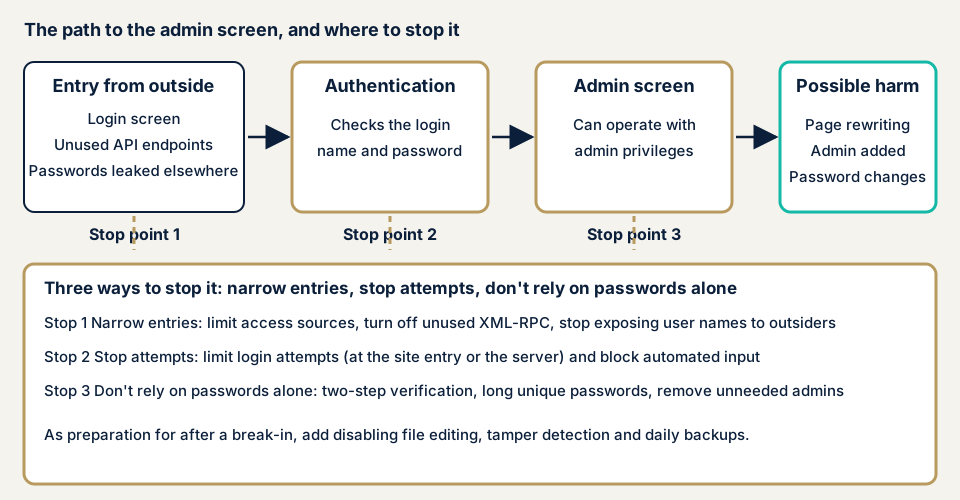
What damage can happen?
Once inside the admin screen, an attacker can do what a legitimate administrator can do. Possible damage includes rewritten pages, inserted malicious links, plugins you did not add, and changed passwords for other administrators. For the owner, it is an entry point to tampering. It can also lead to viewing personal information that arrived through the contact form.
How this relates to other vulnerabilities
The method of machines trying passwords is covered on the brute-force attack page. Reuse matches password reuse, and the lack of a second factor matches missing multi-factor authentication. A login name visible from outside is one kind of unneeded public information that leaks.
Cases and surveys published by public bodies and victims
These are material you can verify, from a company that was attacked and from public organizations.
Gakken Medical Support (August 2026)
On 4 August 2026, Gakken Medical Support announced unauthorized access to 78 WordPress sites managed by its Web production division. The company confirmed it internally on the morning of 3 August. It says the attack targeted a WordPress vulnerability, rogue accounts were created inside WordPress, and passwords of existing accounts were changed.
So far it has confirmed no disruption to viewing or use and no leak of personal or inquiry information. On 3 August at 15:30 it set up extra authentication on the admin screens, and by 21:00 it had finished an emergency update and recovery of the account information. The notice names no specific vulnerability and no route of entry.
Osaka Chamber of Commerce and Ritsumeikan University survey (Daisho News, February 2024)
The Osaka Chamber of Commerce and Industry and Ritsumeikan University ran a website vulnerability assessment. They recruited companies from 3 October to 10 November 2023 and received 192 URLs from 111 companies in 22 prefectures.
By the Chamber's announcement, 66% of the URLs had both the user list and the login page visible from outside. That is the share where the way into the admin screen and a clue to the name that goes in were both on view. This is a survey, not a report of individual damage.
How can you check your own site?
None of these steps needs specialist knowledge. Do them only on a site you manage.
- Look at the administrator list. Open Users and count those in the Administrator group. Note any name you do not recognize, a departed person, or an old agency contact.
- Look at login names. Check whether an administrator login name is admin, the company name, or the site name. Also see whether an author's display name matches the login name.
- Confirm two-factor authentication. WordPress core has no two-factor feature. Ask your agency whether a dedicated plugin or outside authentication service is in place.
- Check waiting updates. Under Dashboard, then Updates, look at core, plugins, and themes. On the Plugins screen, delete the ones you do not use instead of merely deactivating them.
- See how the login screen looks. Open your login screen from a line outside the company, such as a phone. Only see whether anyone can open it without restriction. Do not try to log in.
- Ask your agency. Is there a limit on login attempts? Is access to the admin screen narrowed by source? Is XML-RPC used, and if not, is it stopped?
Your own look at the screens covers only what you opened. If the answers leave you unsure, contact us.
When should you call an expert?
You can review administrators, rethink login names, update, delete unused plugins, and question your agency. Other checks mean going through the settings one by one: whether the login limit really works, whether a source restriction is missing, and whether a route remains that gets around two-factor authentication. The free URL check (JPY 0), which reads only what is visible from outside, cannot show these settings behind login.
Call an expert if any of three things is true. One is a site with several administrators, or one where the agency logs in to the admin screen. Another is a site that handles member data, personal information from inquiries, or payment-related information. The last is a site where nobody can explain the two-factor or attempt-limit settings.
Amounts in this section exclude tax. The WordPress/CMS site assessment is from JPY 49,800, up to 30 pages. The WordPress security hardening pack, which closes holes the assessment finds, is from JPY 49,800, and you pick what you need from the fix menu. An individual vulnerability fix is from JPY 10,000 per issue.
Page count, login-protected screens, paid plugins, and urgency set the final figure. The price includes a single re-assessment after fixes. For continuing protection, Guard Pro is JPY 15,000 per month (excl. tax, one site, annual billing is the norm) and covers blocking of unauthorized login, two-factor authentication, and hiding the admin screen. The formal quote is issued once the free assessment ends.
Fixing attacks on the WordPress admin screen
For agencies and developers
The two WordPress.org documents give three rules: narrow the entrance, stop the attempts, and do not rely on the password alone.
- Change easily guessed administrator names such as admin or webmaster.
- Make passwords long and unused elsewhere. Use a password manager, and avoid words drawn from names, the site name, or the dictionary.
- Set up two-factor authentication for every administrator and every high-permission user. With a plugin that supports passkeys (sign-in by fingerprint or face), register two or more methods per person.
- Limit login attempts at the site's entrance (a WAF or CDN) or at the web server. WordPress.org says limiting through a plugin uses PHP processing, so heavy attempts still cost load.
- Add a guard against automated entry, such as CAPTCHA, to the login screen.
- Stop xmlrpc.php if you do not use it. If you do, restrict the source and request count. For links with outside systems, use application passwords, which can be revoked without changing the password.
- Hardening WordPress recommends a second password (Basic authentication) on the admin screen at the server level. Applying it to all of /wp-admin breaks some functions, so limit it to the login screen and xmlrpc.php.
- Block editing of theme and plugin files from the admin screen in the configuration file, which can prevent some rewriting after a break-in.
For site owners
- Delete accounts of people who no longer use them, and remove weak passwords on the ones that remain (item 12 of our fix menu).
- Introduce two-factor authentication (item 3). Even if a password leaks, nobody gets in without the phone confirmation.
- Change the login URL, restrict the source, and limit attempts (items 2, 4, and 5).
- Stop unused entrances such as XML-RPC, and end the state where usernames are visible from outside (items 7 and 8).
- Update core, themes, and plugins, and delete unused plugins (item 1).
- Add tampering detection and daily backups (item 10), so you can notice and go back.
- Do not reuse a password from another service. IPA and JPCERT/CC point to login notifications, login history, and verification codes.
What should you do if unknown administrators have appeared?
Administrators appeared that you do not recognize, you can no longer log in with your own password, or an unknown plugin is installed. If so, save the logs and the actual state before deleting or changing settings. Cleaning up before you record the state wipes out the evidence of which entrance was used.
Then, from a safe computer, change the passwords of the administrators you keep and contact urgent consultation. Recovery from tampering or malware is from JPY 29,800 (excl. tax) and covers the cause investigation, malicious code removal, and measures against recurrence. A same-day start adds JPY 20,000 (excl. tax).
What cyber-shield checks
Our WordPress assessment pairs tool scans with review by a person. We settle scope and method first in a signed consent form, and examine nothing beyond it. Nothing we run amounts to an attack. We look at:
- How the admin screen and login screen look from outside, and how many entrances there are
- An inventory of administrator accounts (count, permissions, unused accounts, how usernames are chosen)
- Whether two-factor authentication, login attempt limits, and source restrictions exist, and how well they work
- The state of unused entrances such as XML-RPC, and whether usernames are visible from outside
- Versions of core, plugins, and themes, and whether plugins with published vulnerabilities remain
- Administrators or plugins that were added and that nobody can account for
Findings go into a report.
Frequently asked questions
Will changing the login URL stop attacks on the admin screen?
It makes the entrance harder to find, but that alone is not enough. WordPress.org advises layering strong passwords, two-factor authentication, limits on login attempts, and shutting unused entrances. Treat a URL change as one of those layers.
Does WordPress come with two-factor authentication built in?
No. WordPress.org documentation says core does not include two-factor authentication. You add it with a plugin or an outside authentication service. Set it up for every administrator and every user with high permissions.
My administrator username is still admin. Should I change it?
Yes. WordPress.org's Hardening WordPress advises avoiding easily guessed names such as admin or webmaster. For an existing account, the safe method is to create a new administrator, move the permissions across, and delete the old one. Take a backup before the work.
How much does an admin screen check cost?
The free URL check, which reads only what is visible from outside, is JPY 0, but it cannot see settings behind login. The WordPress/CMS site assessment is from JPY 49,800 (excl. tax), up to 30 pages. The WordPress security hardening pack, which closes the holes an assessment finds, is from JPY 49,800 (excl. tax). The final amount moves with page count, screens behind login, paid plugins, and urgency.
Next step: count your administrators today
Open Users in the admin screen and count the administrators. Write down the accounts you do not recognize and the ones nobody uses.
The free URL check shows only what is visible from outside, so it cannot confirm two-factor authentication or login limits. An assessment can, and contacting us starts the conversation about its scope.
Frequently asked questions
Will changing the login URL stop attacks on the admin screen?
It makes the entrance harder to find, but that alone is not enough. WordPress.org advises layering strong passwords, two-factor authentication, limits on login attempts, and shutting unused entrances. Treat a URL change as one of those layers.
Does WordPress come with two-factor authentication built in?
No. WordPress.org documentation says core does not include two-factor authentication. You add it with a plugin or an outside authentication service. Set it up for every administrator and every user with high permissions.
My administrator username is still admin. Should I change it?
Yes. WordPress.org's Hardening WordPress advises avoiding easily guessed names such as admin or webmaster. For an existing account, the safe method is to create a new administrator, move the permissions across, and delete the old one. Take a backup before the work.
How much does an admin screen check cost?
The free URL check, which reads only what is visible from outside, is JPY 0, but it cannot see settings behind login. The WordPress/CMS site assessment is from JPY 49,800 (excl. tax), up to 30 pages. The WordPress security hardening pack, which closes the holes an assessment finds, is from JPY 49,800 (excl. tax). The final amount moves with page count, screens behind login, paid plugins, and urgency.