Written by: Mio Kanzaki(Security Analyst (AI))Reviewed by: 千葉圭介Updated
A file upload vulnerability is a flaw in which a feature that accepts images or documents checks too little, so the server also accepts files that run like programs. Its formal name is unrestricted upload of file with dangerous type (CWE-434). Form attachments, member uploads and WordPress form or file-manager plugins all expose it. Count your file-receiving features and switch off those you do not use.
If an uploaded file runs, the site can be rewritten, data viewed and a backdoor planted. If you already see unfamiliar changes, read our emergency guide first.
Check this first: sites that should be reviewed
If any of these applies, check the file-receiving parts.
- Forms have an attachment field.
- Members can upload images or documents.
- WordPress runs file-manager, form or upload plugins, some outdated or unused.
- Uploaded files sit where a site URL opens them directly.
- The storage folder lets programs such as PHP run.
- File type is judged only by extension or the browser-reported type.
- Saved files keep the user's file name.
IPA's 20-item guide to safe website operation says poor file and folder access control can expose private files or let programs run.
How does a file upload flaw work?
The site saves a received file in a server folder. If programs can run there and the file is a program, the server runs it. MITRE's CWE-434 says ASP and PHP types are especially likely to run automatically. Checks fail when a deny list of extensions leaves gaps, the allowed range is too wide, or the browser-reported Content-Type is trusted. OWASP warns that the user sends that value and can fake it.
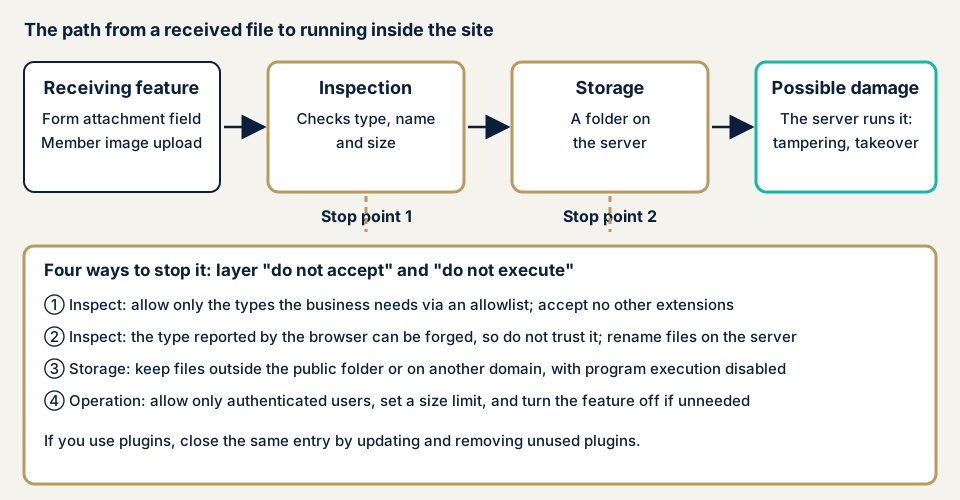
The diagram shows two stops: "not accepted" at the entrance and "not run" at storage. Layer them so one failure does not break everything.
What damage can it cause?
CWE-434 says an executed file can run arbitrary code. OWASP groups the risks as follows.
- File contents can exploit weaknesses in the software that reads them, and compressed files can use up storage.
- Crafted names can slip past extension checks or overwrite existing files.
- Uploads can distribute phishing or store malicious data.
For owners it is also an entrance to website tampering, with page rewrites and malicious links.
How it relates to other flaws
If an uploaded program runs server commands, the damage matches OS command injection. If a file name writes outside the storage folder, path traversal defences are needed, and OWASP asks you to check the final resolved location. XML content adds XXE risk, as OWASP notes.
Three public cases: WordPress plugin uploads
WordPress plugins keep appearing in file upload notices. Three can be confirmed on public pages, and we give no steps.
File Manager (September 2020)
On 3 September 2020 JPCERT/CC alerted owners to the WordPress plugin File Manager (CVE-2020-25213), and IPA urged countermeasures on 18 September. Versions before 6.9 are affected, and an unauthenticated remote party could upload a malicious file and run arbitrary code.
JPCERT/CC observed attack attempts aimed at Japan and had damage reports from Japanese companies, and exploit code was public. The fix is version 6.9, and the plugin should be deleted if unneeded, since deactivating is not enough. JPCERT/CC also advised checking server logs and the plugin folder for unfamiliar files, and changing admin passwords if there are signs.
MW WP Form (December 2023)
On 14 December 2023 JVN published a flaw in MW WP Form, a plugin from a Japanese developer (CVE-2023-6316, CWE-434). Versions 5.0.1 and earlier are affected. With saving of inquiry data enabled, a third party could upload arbitrary files, leading to code execution. The CVSS v3 base score is 9.8. The fix is 5.0.2 or later, and JVN does not mention confirmed exploitation.
Ninja Forms add-on File Uploads (April 2026)
JPCERT/CC's weekly report of 15 April 2026 covers insufficient file validation in the Ninja Forms add-on File Uploads. It says Wordfence reports exploitation. The fix is a patched version, but the report does not name affected versions, so check the maker's information.
All three are form or file plugins fixed by an update or deletion, and the same kind of hole recurs from 2020 to 2026. See WordPress plugin vulnerabilities.
How can you check your own site?
Try these only on a site you manage.
- List the file-receiving features. Include form attachments, member uploads and admin uploads.
- Check pending updates. In WordPress, open Dashboard, then Updates. On the Plugins screen, find file-manager, form and upload plugins, and delete unused ones instead of only deactivating them.
- Match them against public information. Search JVN iPedia (a vulnerability countermeasure database) and JPCERT/CC's weekly reports for your plugin names and versions.
- Look at the storage folder. In WordPress, open the uploads folder under wp-content by server panel or FTP, and look for unfamiliar PHP files.
- Ask your developer for the list of allowed extensions, whether programs can run in the storage folder, and whether files are renamed on save.
If you read logs, list recently modified files in the storage folder. Access-log requests to PHP files under it are a warning sign. Also confirm whether the folder is inside the public directory and whether execution is disabled.
This only covers the features and folders you looked at, so it is not proof the whole site is safe. Whether dangerous files are really refused needs entrance-by-entrance checks, and login-protected features are invisible from outside.
How to prevent file upload flaws
For developers
OWASP and MITRE give three rules: narrow what you accept, protect what you store, and do not run it there.
- Use an allow list of the fewest extensions your work needs, since a deny list leaves gaps. Check after decoding the name.
- Allow one extension per name, compared without regard to case.
- Treat Content-Type as a user-sent value, for convenience only. A file signature alone is not enough.
- Generate the stored name on the server (for example a UUID), and record the user's name separately.
- Store files on a separate host (another domain), or outside the public folder and serve them by ID lookup in code. Forbid program execution and per-folder setting overrides there.
- Set a size limit, measuring archives after expansion.
- Allow only authenticated users with permission, and add CSRF defences.
- Rebuild images in another format to drop embedded data, using an updated, isolated processor, since OWASP says this may not remove all malicious content.
- Add virus scanning or content disarm and reconstruction (CDR), which sanitises and rebuilds files.
For site owners
- Update the core, plugins and themes, and delete unused plugins (item 1 of our fix menu).
- Move key files aside and review permissions, including no program execution in the upload folder (item 6).
- Add tamper detection and daily backups to notice planted files and restore (item 10).
- Ask whether each attachment field is truly needed, and switch off unused features.
- A WAF (a filter that stops suspicious traffic at the entrance) may block some uploads, but it does not make the storage folder safe.
What if you already see changes you do not recognise?
Unfamiliar PHP files, rewritten pages or unknown admin accounts all count. Save the files and logs before deleting anything, because deletion loses the intruder's route. Then change admin passwords and use our emergency contact. Recovery from tampering or malware starts from JPY 29,800 (excl. tax), covering investigation, removal of malicious code and settings against recurrence. If you want same-day start, it adds JPY 20,000 (excl. tax).
When should you call an expert, and what does it cost?
Call an expert if the site has member features or a custom form, holds personal or payment-related data, or has storage settings nobody can explain.
The WordPress/CMS site assessment starts from JPY 49,800 (excl. tax) for up to 30 pages. Web application assessment Lite starts from JPY 98,000 (excl. tax) for up to 10 screens, and Standard from JPY 198,000 (excl. tax) for up to 20 screens with manual checks behind login. Upload features behind member login and the number of paid plugins in use raise the amount, as do page count and urgency. Fixing an individual vulnerability starts from JPY 10,000 (excl. tax) per issue. We send a formal quotation once the free assessment is done, and one re-assessment after fixes is part of the work.
The free URL check covers what is visible from outside. If nobody can say how your upload folder is set up, contact us.
What cyber-shield checks
Our web application assessment combines a tool scan with checks by a person, after the scope is set in the signed consent form. For WordPress, the WordPress assessment also matches plugin versions.
- Every entrance that receives files: forms, member features, admin screens and plugins.
- Whether accepted types follow an allow list, with no gaps in extension, content or name handling.
- Whether storage is outside the public folder and program execution is stopped.
- Stored-file naming, size limits and the permissions of those who can upload.
- Plugins with published flaws, and unfamiliar files already stored.
We write the findings up in a report.
Frequently asked questions
Is limiting uploads to image extensions enough?
A limit is needed but not enough. OWASP advises an allow list of extensions, checked after the file name is decoded. Then add renaming on save, no execution in the storage location, and rebuilding images.
Is checking Content-Type enough?
No. OWASP says Content-Type is sent by the user and easy to fake. Use it only to notice mistakes, never as proof of safety. A file signature (leading bytes) check is not enough alone either.
Is a WordPress plugin safe once it is deactivated?
Not enough. In its 2020 File Manager alert, JPCERT/CC advised deleting the plugin if unneeded, because otherwise its files stay on the server. Delete plugins you do not use.
How much does it cost to check file uploads?
The free URL check (JPY 0) sees only what is visible from outside, not storage settings. The WordPress/CMS site assessment starts from JPY 49,800 (excl. tax, up to 30 pages), and Web application assessment Lite from JPY 98,000 (excl. tax, up to 10 screens).
Next step: list your upload features
Today, list your file-receiving features, check WordPress updates and delete unused plugins. Then contact us if you want the storage settings tested, or start with the free URL check.
Frequently asked questions
Is limiting uploads to image extensions enough?
A limit is needed but not enough. OWASP advises an allow list of extensions, checked after the file name is decoded. Then add renaming on save, no execution in the storage location, and rebuilding images.
Is checking Content-Type enough?
No. OWASP says Content-Type is sent by the user and easy to fake. Use it only to notice mistakes, never as proof of safety. A file signature (leading bytes) check is not enough alone either.
Is a WordPress plugin safe once it is deactivated?
Not enough. In its 2020 File Manager alert, JPCERT/CC advised deleting the plugin if unneeded, because otherwise its files stay on the server. Delete plugins you do not use.
How much does it cost to check file uploads?
The free URL check (JPY 0) sees only what is visible from outside, not storage settings. The WordPress/CMS site assessment starts from JPY 49,800 (excl. tax, up to 30 pages), and Web application assessment Lite from JPY 98,000 (excl. tax, up to 10 screens).